Quickstart
Get trading on Polymarket from Telegram in under five minutes. No browser extensions, no MATIC, no gas management.
What you need
- Telegram app
- Funds to deposit (USDC on Polygon is fastest; Ethereum, Solana, BSC, Base, Bitcoin, HyperEVM also supported via bridge)
- You are not located in the U.S.
1) Set Up
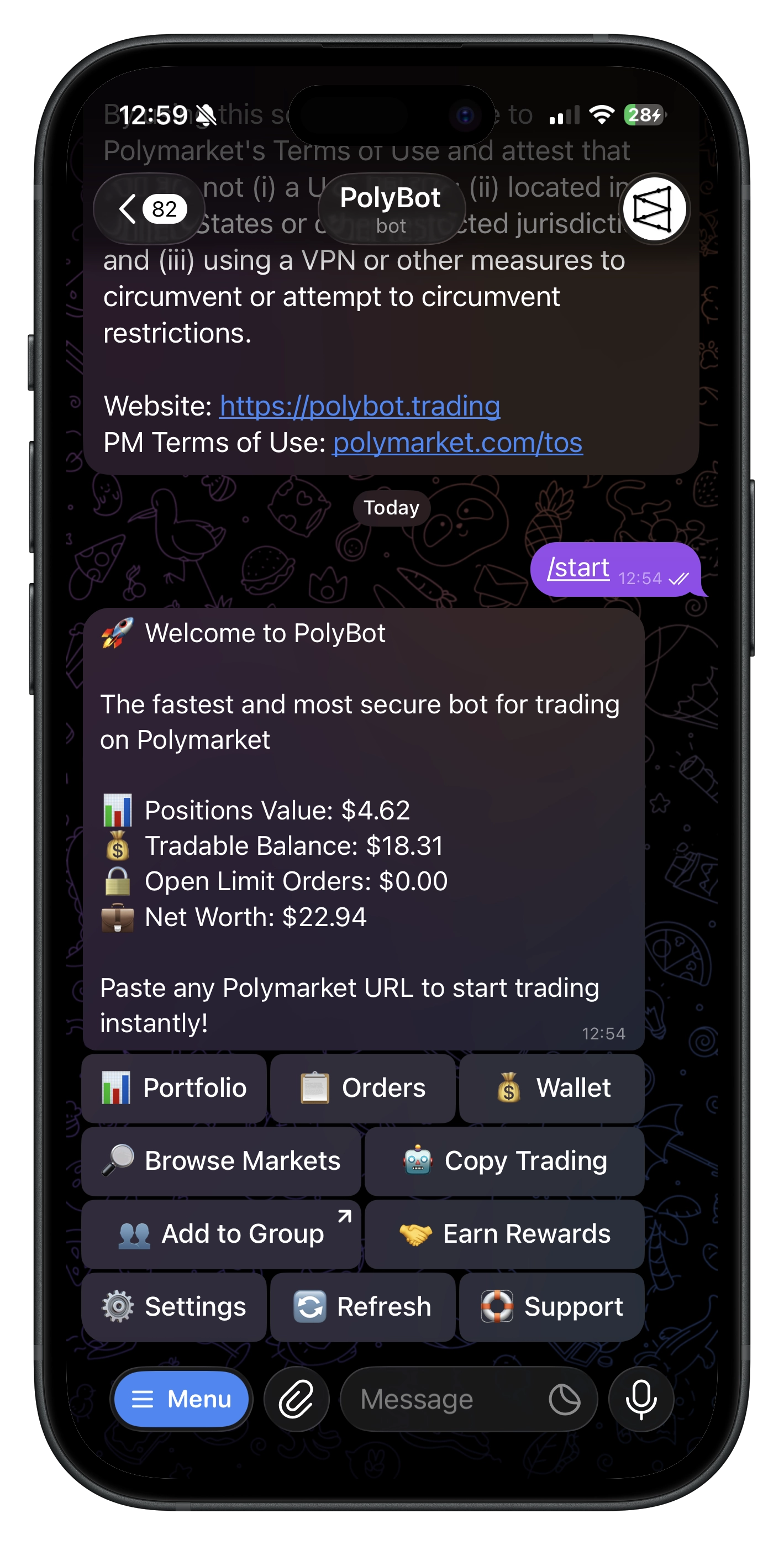
- Open PolyBot in Telegram → tap
/start - Accept Terms and compliance confirmation
- Your self-custodial Polygon smart wallet (Safe) is created automatically
- No MATIC needed — gas is sponsored
2) 💵 Deposit Funds
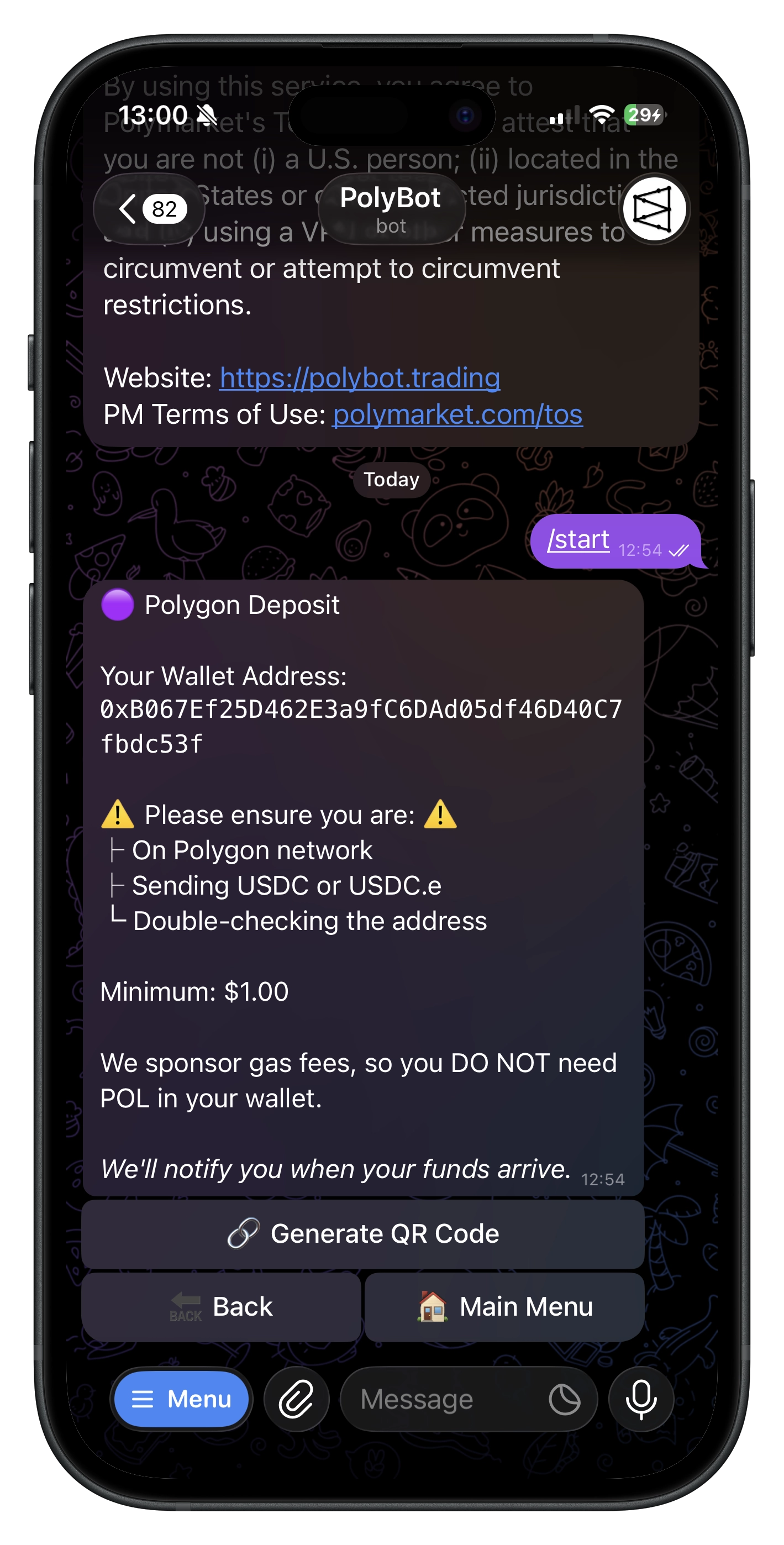
- Run
/walletor tap 💰 Wallet → 💵 Deposit - Select your network:
- Polygon (recommended) — fastest and cheapest, send USDC or USDC.e directly
- Other networks — Ethereum, Solana, BSC, Base, Bitcoin, HyperEVM via bridge
- All deposits auto-convert to USDC.e for trading
- Balances update within 1–3 min; tap 🔄 Refresh
3) ✅ Place Your First Trade
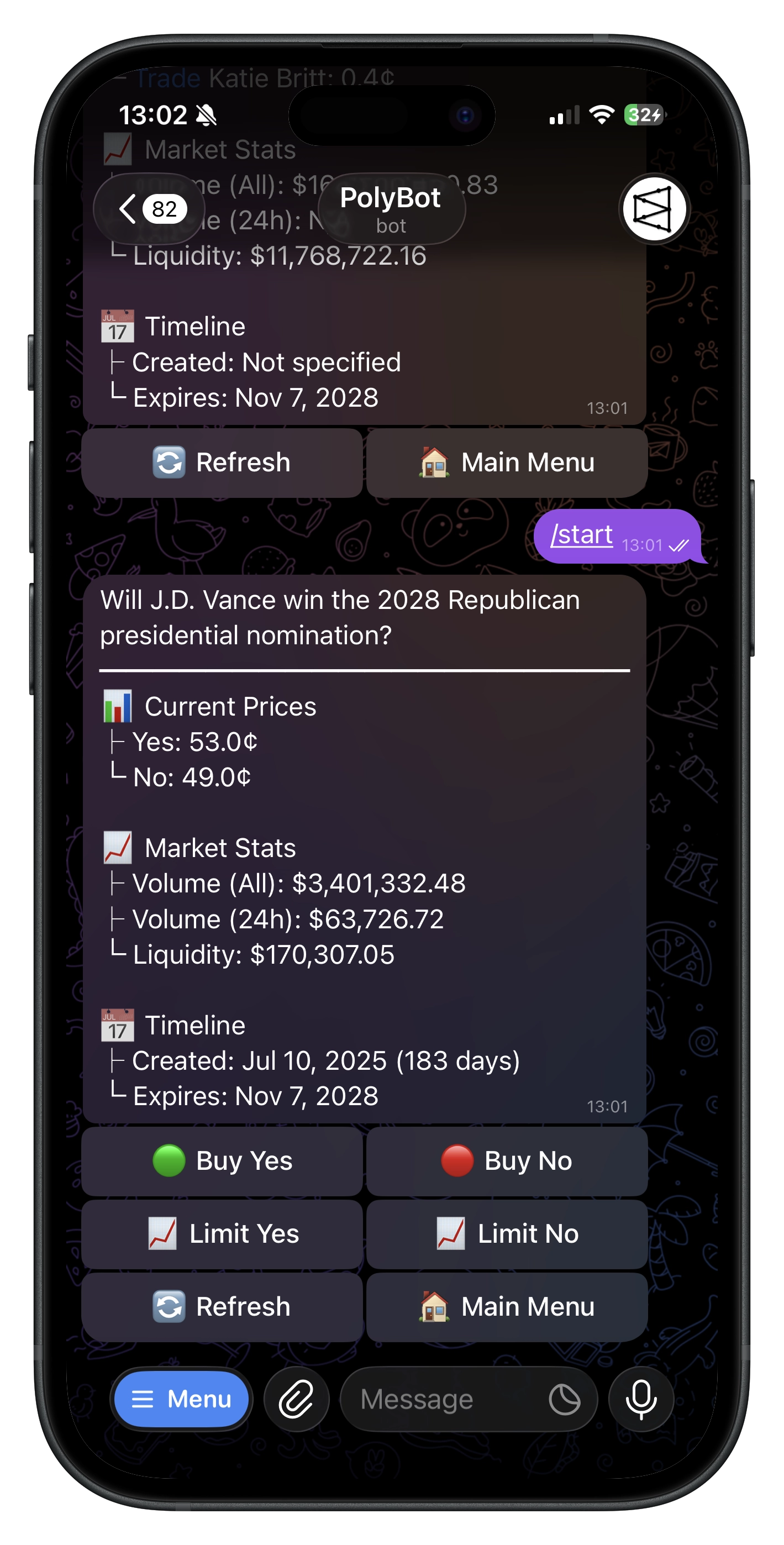
Paste a Polymarket URL in chat → market opens with live prices → buy in two taps.
- Paste any Polymarket URL (e.g.,
https://polymarket.com/event/...) - Tap ✅ Buy YES or ❌ Buy NO
- Choose a quick-buy amount or enter custom
- Review confirmation (cost after fee, shares, price) → confirm
- Position appears in 📊 Portfolio shortly
4) 📈 Place a Limit Order
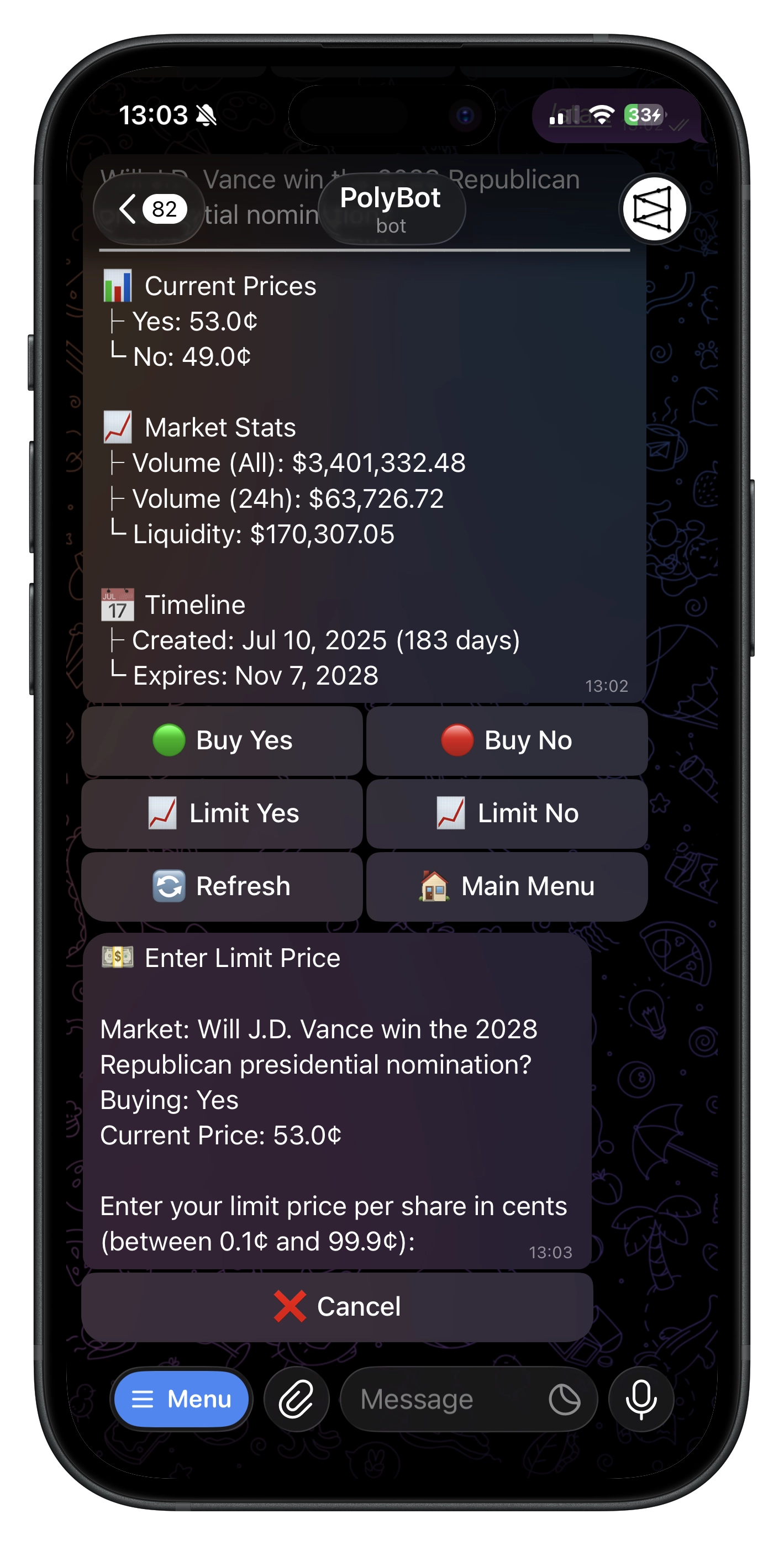
Set the price you're willing to pay — order sits on the book until filled (GTC).
- From a market → tap 📈 Limit YES or 📈 Limit NO
- Enter target price in cents (e.g.,
75= $0.75) - Enter shares (min 5)
- Confirm
5) 💰 Sell a Position
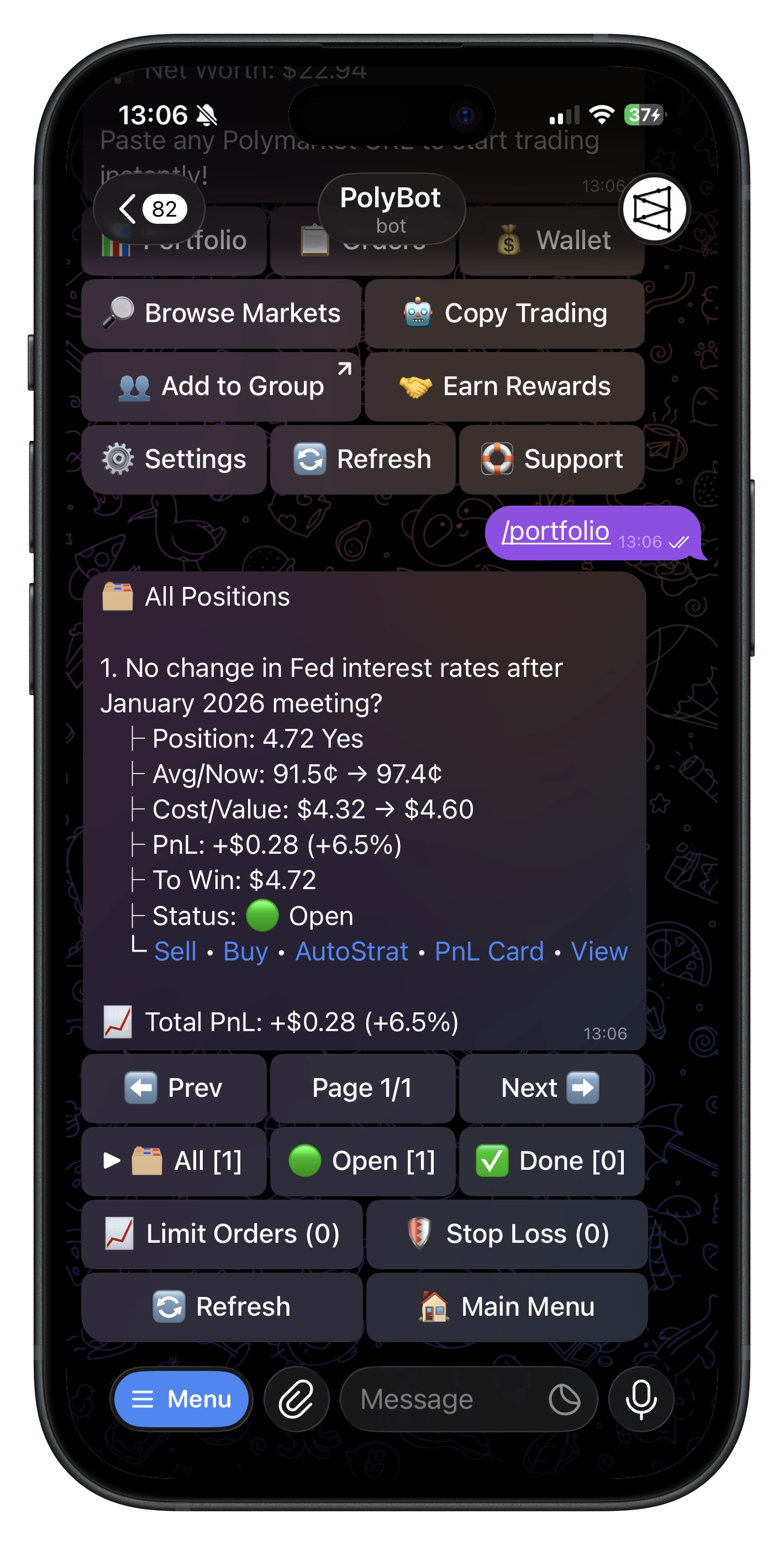
- Open
/portfolio→ pick a position → Sell - Choose 25/50/75/100% or enter custom shares
- Or use 📉 Limit Sell (set exit price) or 🛡️ Stop Loss (set downside protection)
6) 📉 Limit Sell
Set your exit price and wait — useful for take-profit targets.
- From a position → 📉 Limit Sell
- Enter price (¢) and shares (min 5)
- Order sits GTC until filled or canceled from 📋 Orders
7) 💸 Withdraw
/wallet→ 💸 Withdraw- Enter destination address (
0x…on Polygon) and amount - Confirm — gas is sponsored
8) 🤝 Referrals
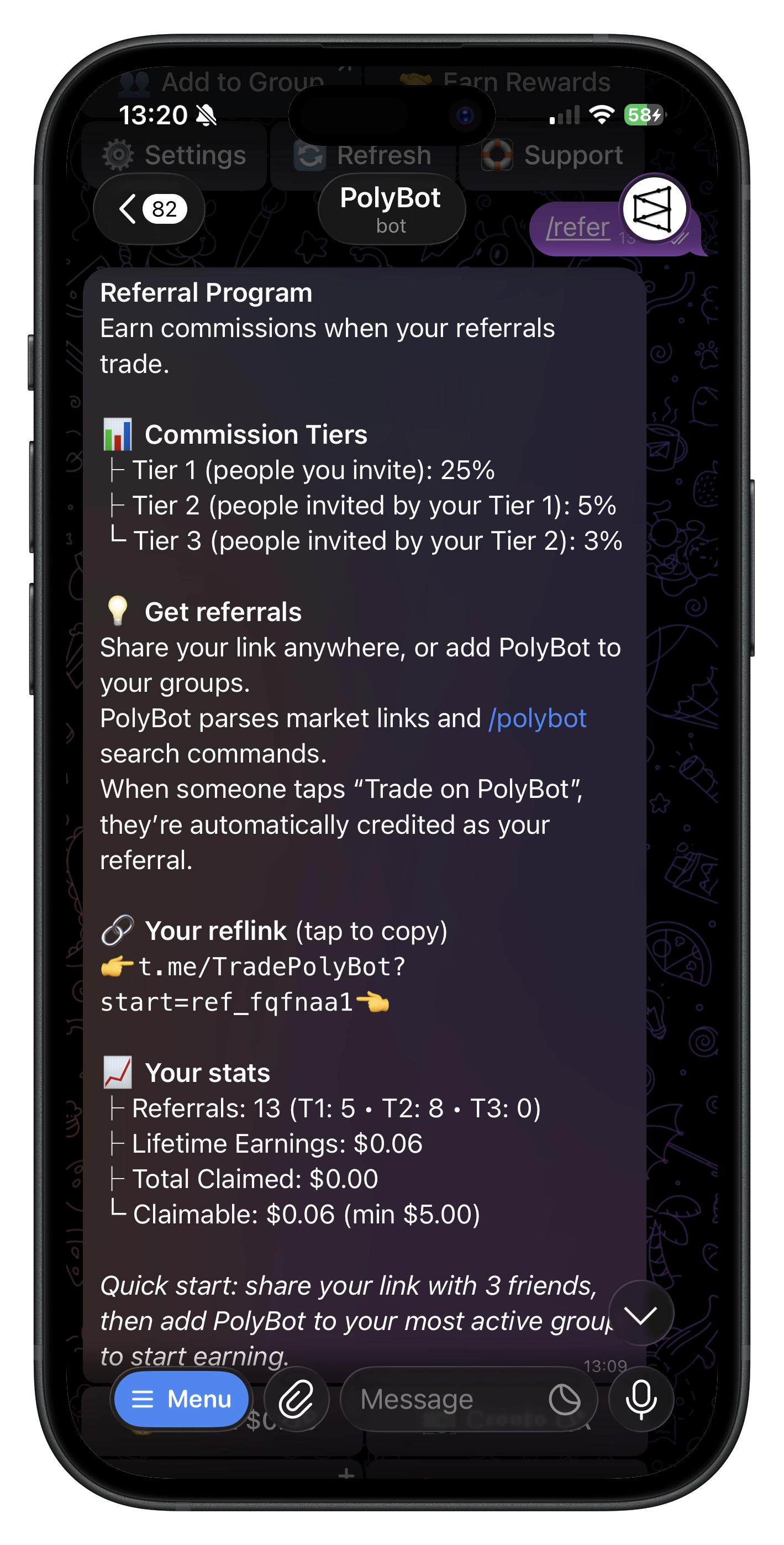
- Open 🤝 Referral Hub or run
/refer - Copy your deep-link or generate a QR code
- Use 👥 Add to Group to earn from group traffic
- 💸 Claim rewards once claimable balance meets minimum
Commands
| Command | What it does |
|---|---|
/start | Begin or open deep links |
/home | 🏠 Main Menu |
/help | ❓ Help & FAQs |
/wallet | 💰 Wallet |
/portfolio | 📊 Portfolio |
/orders | 📈 Limit orders |
/stoploss | 🛡️ Stop losses |
/search | 🔎 Market search |
/settings | ⚙️ Settings |
/refer | 🤝 Referral hub |
/copy | 🤖 Copy trading |
/recent | 📜 Recent activity |
/preset | 🎯 Exit presets |
/strategy | 📈 Trading strategies |
🚀 Next Steps
- Trading Strategies — automated entry/exit rules for crypto markets
- Copy Trading — mirror successful traders
- Presets — take-profit and stop-loss templates
- Stop Loss — downside protection
- Auto-Claim — auto-redeem winnings
- Group Guide — PolyBot in Telegram groups
Troubleshooting
- Deposit not showing — wait 1–3 min (cross-chain may take longer), tap 🔄 Refresh
- Order failed — check balance; approvals may be finishing — retry in a few seconds
- Withdrawal delayed — if sponsor MATIC is low, try later; gas is normally sponsored
Safety & Compliance
You control a self-custodial Safe. Export your signer key in ⚙️ Settings (auto-deletes after 60s). Not available to U.S. persons.