Stop Loss Guide
Protect your positions with stop-loss orders. Automatically sell when prices drop to limit your losses.
Before You Start
- What is a stop loss? An order that automatically sells your position if the price drops to a specified level.
- Why use it? To limit potential losses without constantly monitoring the market.
- Monitoring: PolyBot continuously monitors prices and executes your stop loss when triggered.
Stop losses are a key risk management tool. They help you define your maximum acceptable loss on any position before you enter the trade.
How Stop Loss Works
- You set a trigger price or trigger percentage on an open position.
- PolyBot monitors the market price continuously.
- When the price drops to your trigger level, the stop loss activates.
- Your shares are sold automatically (at market or limit price, depending on your settings).
- You receive a notification with the execution details.
Trigger Types
Choose how to define when your stop loss triggers:
Fixed Price Trigger
Set a specific price in cents where you want to sell.
Example: You bought at 50¢. Set stop loss at 40¢.
- If price drops to 40¢ or below → Stop loss triggers.
Best for: When you know the exact price level you want to exit at.
Percentage Trigger
Set a percentage drop from your entry price.
Example: You bought at 50¢. Set stop loss at -20%.
- Trigger price = 50¢ × (1 - 0.20) = 40¢
- If price drops to 40¢ or below → Stop loss triggers.
Best for: When you want consistent risk management across different entry prices.
Execution Modes
Choose how your stop loss executes when triggered:
| Mode | How It Works | Pros | Cons |
|---|---|---|---|
| ⚡ Stop-Loss (Market) | Sells immediately at current market price | Fast, guaranteed execution | Price may vary (slippage) |
| 🎯 Stop-Limit | Places limit order at trigger price | Price guaranteed if filled | May not fill if price gaps |
When to Use Each Mode
Use Market Mode when:
- You prioritize getting out of the position.
- The market has good liquidity.
- You accept some price uncertainty for guaranteed execution.
Use Limit Mode when:
- You want to ensure a specific exit price.
- You're okay with the risk of not filling if price moves quickly.
- You're protecting a large position.
Creating a Stop Loss
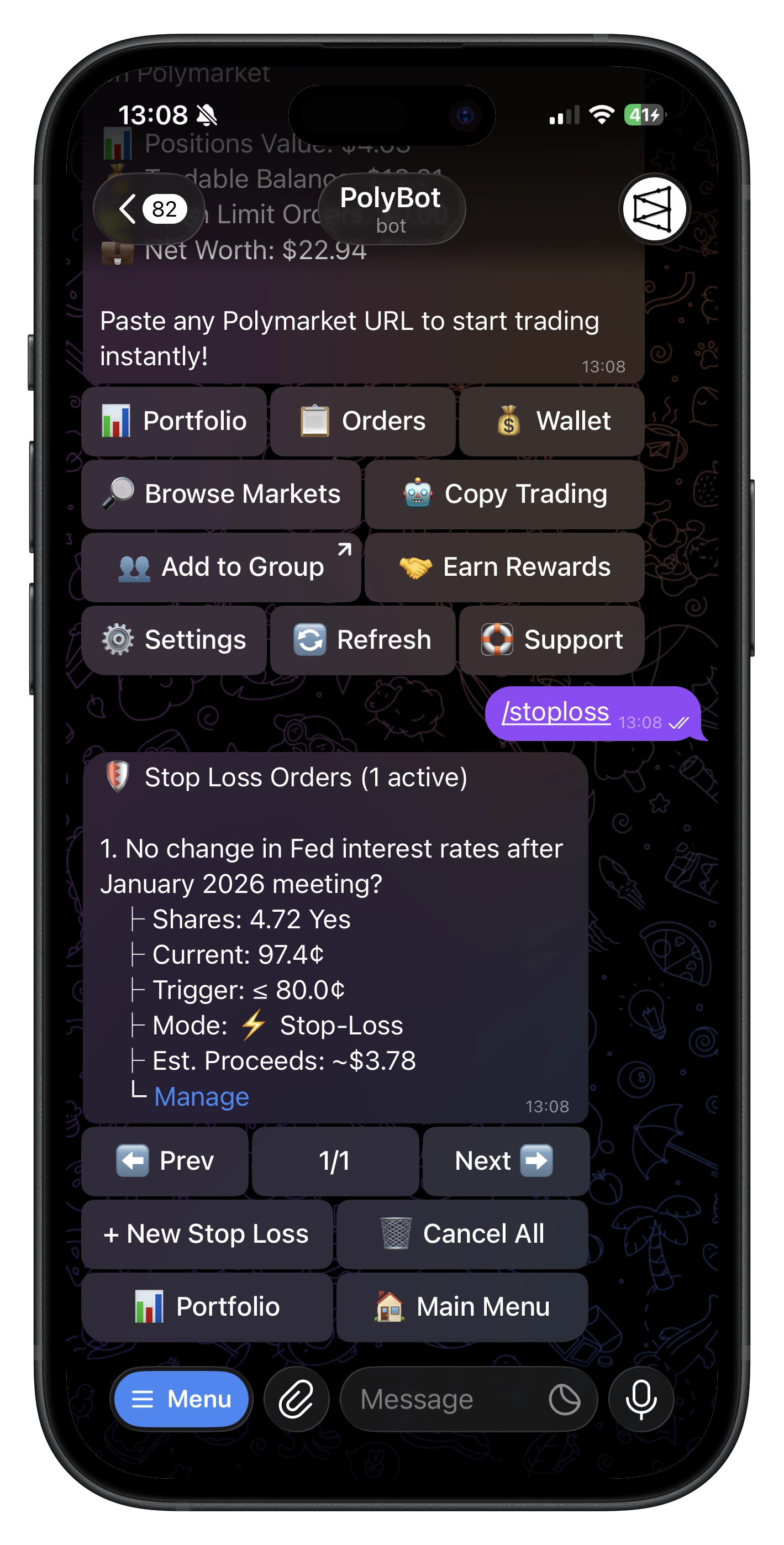
Step 1: Open Stop Loss Menu
- Command:
/stoploss - Or go to Main Menu → 📈 Orders → 🛡️ Stop Loss
Step 2: Select a Position
- Tap ➕ New Stop Loss.
- Choose from your open positions.
- Shows available shares (excluding shares already covered by other stop losses).
Step 3: Choose Trigger Type
- 💲 Fixed Price — Enter a specific price in cents.
- 📊 Percentage — Enter a percentage drop from entry.
Step 4: Set the Trigger
For Fixed Price:
- Enter the price in cents (e.g.,
40for 40¢). - Must be below the current price.
For Percentage:
- Enter the percentage (e.g.,
20for 20%). - Shows the calculated trigger price.
Step 5: Select Quantity
Choose how many shares to protect:
| Option | Description |
|---|---|
| 25% | Protect a quarter of your position |
| 50% | Protect half your position |
| 75% | Protect most of your position |
| 100% | Protect your entire position |
| Custom | Enter a specific number of shares |
You can create multiple stop losses at different levels. For example, sell 50% at -15% and remaining 50% at -25%.
Step 6: Choose Execution Mode
- ⚡ Stop-Loss — Market execution (default)
- 🎯 Stop-Limit — Limit execution at trigger price
Step 7: Confirm
Review your stop loss details:
- Shares protected
- Trigger price
- Execution mode
- Estimated proceeds (approximate)
Tap ✅ Confirm to activate.
Managing Stop Losses
Viewing Active Stop Losses
- Command:
/stoploss - See all active stop losses with:
- Market and outcome
- Current price vs trigger price
- Shares protected
- Execution mode
- Estimated proceeds
Editing a Stop Loss
- Open the stop loss.
- Tap ✏️ Edit.
- You can change:
- 🎯 Trigger — New trigger price or percentage
- ⚖️ Quantity — Number of shares
Canceling a Stop Loss
- Open the stop loss.
- Tap 🗑️ Delete.
- Confirm cancellation.
Cancel All Stop Losses
- Go to the stop loss list.
- Tap 🗑️ Cancel All.
- Confirm to remove all active stop losses.
Stop Loss Lifecycle
Your stop loss goes through these stages:
ACTIVE → TRIGGERED → EXECUTING → FILLED
                            ↘ FAILED (if execution fails)
| Status | Meaning |
|---|---|
| Active | Monitoring price, waiting to trigger |
| Triggered | Price hit trigger level, preparing to sell |
| Executing | Sell order being placed |
| Filled | Successfully sold, funds in wallet |
| Failed | Execution failed after retries |
| Canceled | You or the system canceled it |
Auto-Cancellation
PolyBot automatically cancels stop losses in certain situations:
| Reason | What Happened |
|---|---|
| Insufficient Shares | You sold shares elsewhere, not enough left for stop loss |
| Position Closed | Your position no longer exists |
| Market Resolved | The market has settled |
When auto-canceled, you receive a notification explaining why.
Notifications
When Stop Loss Executes
You receive a message showing:
- 🔔 Stop Loss Executed!
- Market and outcome
- Trigger price
- Shares sold
- Average execution price
- Total proceeds
When Stop Loss Auto-Cancels
You receive a message showing:
- 🔔 Stop Loss Auto-Canceled
- Reason for cancellation
- Required vs available shares
Price Calculations
Fixed Price
You enter the exact price. No calculation needed.
Constraints:
- Must be between 0.1¢ and 99.9¢.
- Must be below the current market price.
Percentage from Entry
Trigger Price = Entry Price × (1 - Percentage / 100)
Examples (Entry at 60¢):
| Percentage | Calculation | Trigger Price |
|---|---|---|
| -10% | 60 × 0.90 | 54¢ |
| -20% | 60 × 0.80 | 48¢ |
| -30% | 60 × 0.70 | 42¢ |
Reserved Shares
When you create a stop loss, those shares are "reserved":
- Reserved shares cannot be used for other stop losses.
- Available shares = Total shares - Reserved shares
- If you sell shares manually, stop losses may be auto-canceled if not enough remain.
Example:
- You hold 100 shares.
- Create stop loss for 60 shares → 60 reserved.
- Available for another stop loss: 40 shares.
Commands
| Command | What It Does |
|---|---|
/stoploss | Open stop loss menu |
Example Strategies
Simple Protection
Protect your entire position with one stop loss:
Position: 100 shares at 50¢
Stop Loss: -20% (trigger at 40¢) → Sell 100%
Scaled Exit
Multiple stop losses at different levels:
Position: 100 shares at 50¢
Stop Loss 1: -10% (45¢) → Sell 50 shares
Stop Loss 2: -25% (37.5¢) → Sell 50 shares
Tight Risk Management
For high-conviction trades with strict limits:
Position: 100 shares at 70¢
Stop Loss: -7% (65¢) → Sell 100%
Stop Loss vs Presets
| Feature | Stop Loss | Presets |
|---|---|---|
| Creation | Manual per position | Template-based |
| Take Profit | ❌ No | ✅ Yes |
| Stop Loss | ✅ Yes | ✅ Yes |
| Auto-Apply | ❌ No | ✅ Yes |
| Edit Individual | ✅ Yes | Limited |
Use Stop Loss when:
- You want standalone protective orders.
- You need fine-grained control per position.
- You want to add protection to existing positions.
Use Presets when:
- You want combined take-profit and stop-loss.
- You want automatic application on every buy.
- You prefer template-based strategies.
Troubleshooting
- Cannot create stop loss: Ensure you have an open position with available (unreserved) shares.
- Trigger must be below current price: Stop losses only trigger on price drops.
- Stop loss not triggering: The market price must reach your trigger level. Check current prices.
- Auto-canceled unexpectedly: You may have sold shares elsewhere. Check the notification for details.
- Failed after triggering: The sell order couldn't execute. Check market liquidity.
- Limit order not filling: In Stop-Limit mode, if price gaps past your trigger, the limit order may not fill.
Related Guides
- Presets Guide — Combined exit strategies with take-profit
- Trading Guide — Manual trading and selling
- Portfolio Guide — Managing your positions