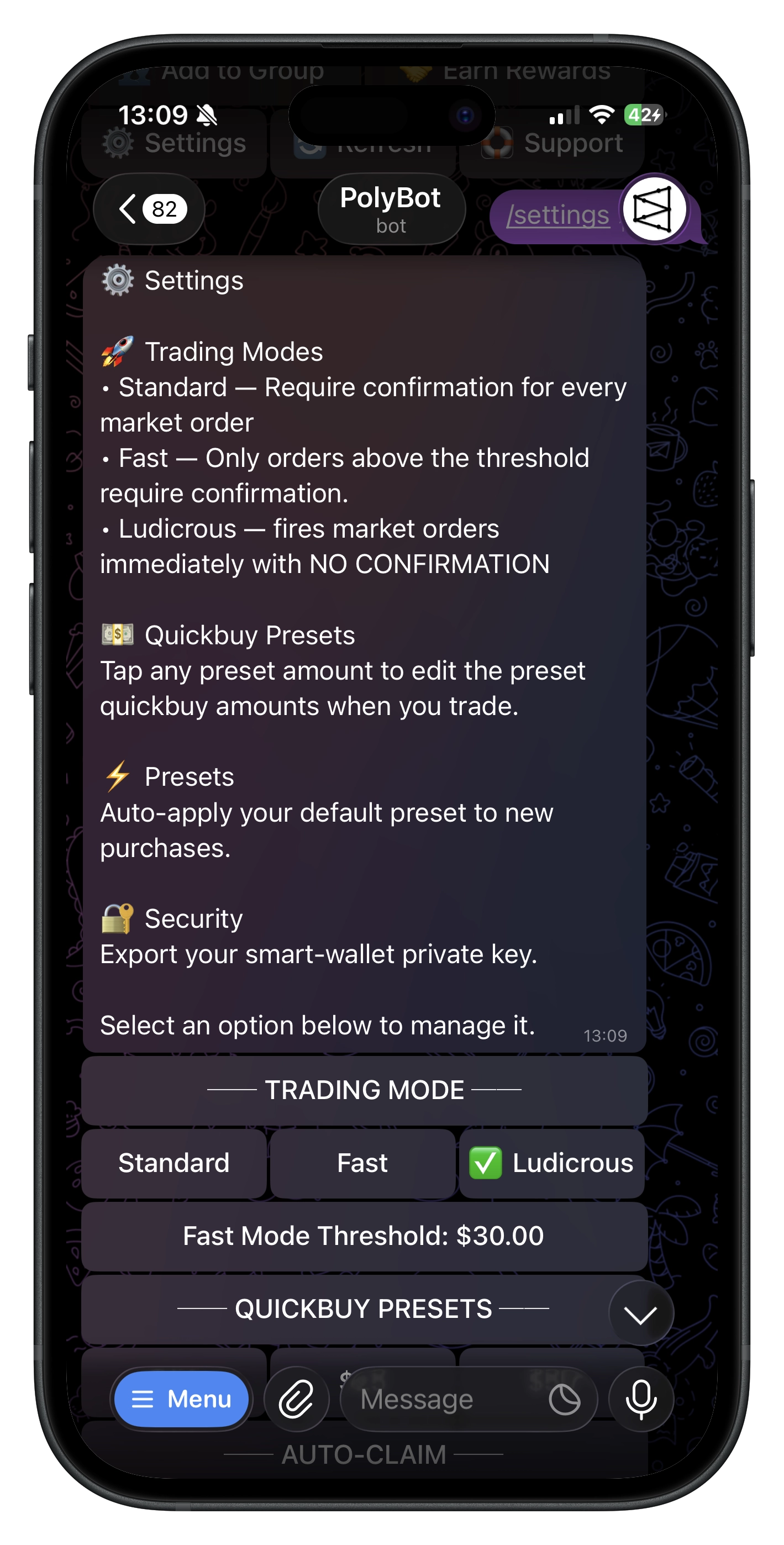
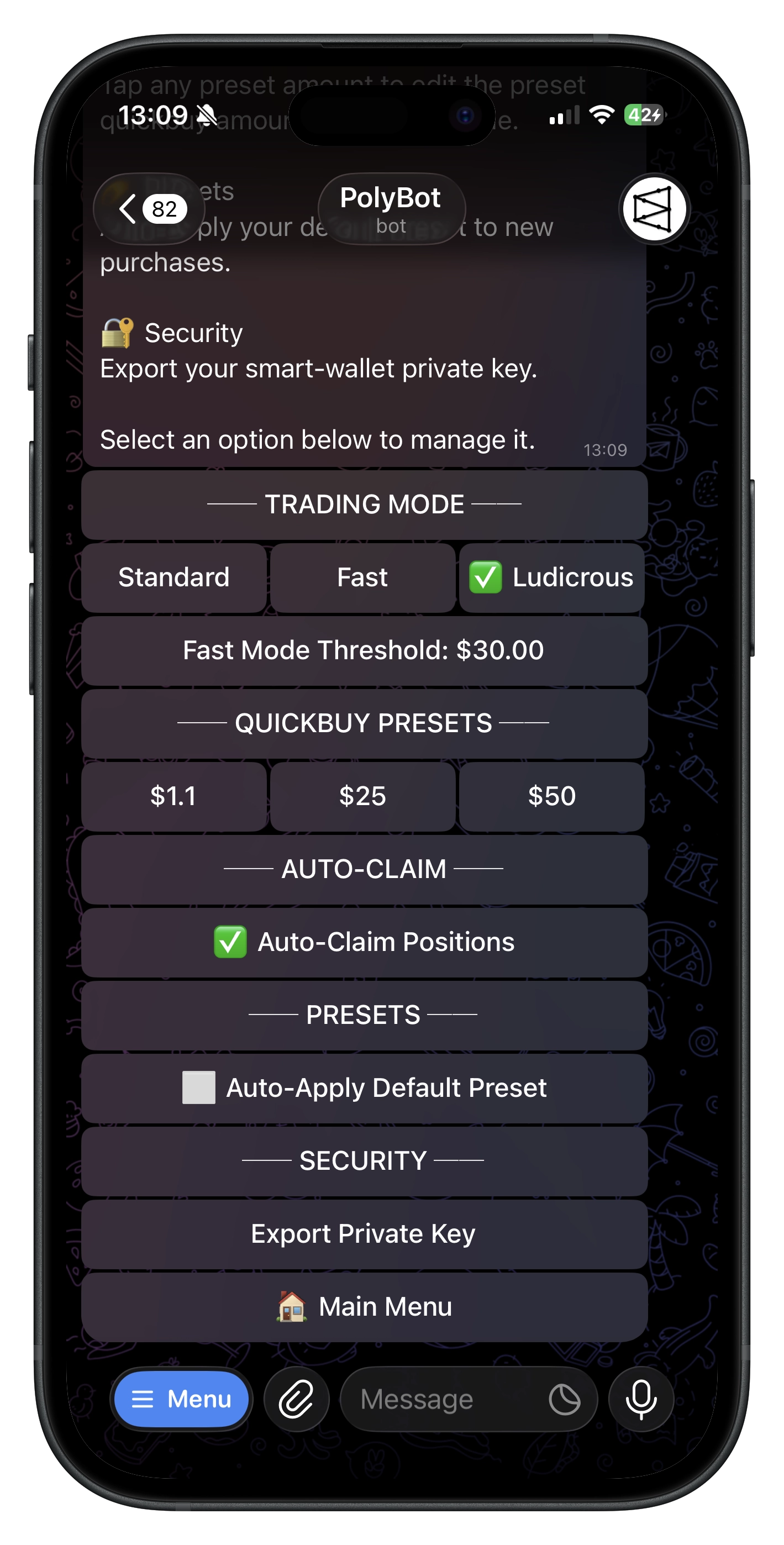
Settings Guide
Customize your PolyBot experience. Configure trading modes, quick-buy amounts, auto-claim, presets, and more.
Accessing Settings
- Command:
/settings - Or from Main Menu → ⚙️ Settings

Trading Mode
Control how quickly your orders execute.
| Mode | Description | Best For |
|---|---|---|
| Standard | Normal execution speed | Most users |
| Fast Mode | Faster execution for trades above threshold | Active traders |
| Ludicrous Mode | Fastest possible execution | High-frequency trading |
Changing Trading Mode
- Go to ⚙️ Settings.
- Tap the current mode button (e.g.,
Standard). - Select your preferred mode.
Fast Mode Threshold
When using Fast Mode, set the minimum trade size that triggers fast execution:
- In Settings, tap Fast Mode Threshold.
- Enter an amount (e.g.,
100for $100+). - Trades at or above this amount use fast execution.
Range: $1 – $100,000
Start with Standard mode. Only switch to Fast/Ludicrous if you need quicker execution for time-sensitive trades.
Quick-Buy Amounts
Customize the three quick-buy buttons shown when placing market orders.
Default values: $10 / $25 / $50
Changing Quick-Buy Amounts
- Go to ⚙️ Settings.
- Find Quick Buy Amounts.
- Tap Left, Center, or Right to edit each button.
- Enter your preferred amount.
Range: $1 – $10,000 per button

Example Configuration:
- Left: $5 (small trades)
- Center: $25 (medium trades)
- Right: $100 (larger trades)
Auto-Claim Positions
Automatically redeem winning positions when markets resolve.
| State | Behavior |
|---|---|
| ✅ Enabled | Positions auto-redeemed when markets settle |
| ⬜ Disabled | You must manually redeem positions |
Toggling Auto-Claim
- Go to ⚙️ Settings.
- Find Auto-Claim Positions.
- Tap to toggle on/off.
See the Auto-Claim Guide for full details.
Auto-Apply Preset
Automatically apply your default exit preset to every new purchase.
| State | Behavior |
|---|---|
| ✅ Enabled | Default preset applies automatically after each buy |
| ⬜ Disabled | You choose whether to apply a preset manually |
Toggling Auto-Apply
- Go to ⚙️ Settings.
- Find Auto-Apply Preset.
- Tap to toggle on/off.
Requirements:
- You must have a default preset set.
- See Presets Guide to create and set a default preset.
Combine Auto-Apply Preset with a good default preset for automated risk management on every trade.
Referral Program
Access your referral dashboard and link.
Viewing Referral Stats
- Go to ⚙️ Settings → 🤝 Referral Program.
- See:
- Total referrals (L1, L2, L3 tiers)
- Lifetime earnings
- Claimable rewards
Getting Your Referral Link
- In the Referral Program section.
- Copy your deep link or generate a QR code.
- Share with friends.
Claiming Rewards
- When you have claimable rewards, a Claim button appears.
- Tap to claim rewards to your wallet.
See the Referrals Guide for full details on the referral program.
Private Key Export
Export your wallet's private key for self-custody backup.
How to Export
- Go to ⚙️ Settings.
- Find 🔑 Export Private Key.
- Confirm the security warning.
- Your private key is displayed (auto-deletes after 60 seconds).
- Never share your private key with anyone.
- Store it securely offline.
- Anyone with your private key controls your wallet.
Settings Summary
| Setting | Location | Description |
|---|---|---|
| Trading Mode | Settings | Standard / Fast / Ludicrous execution |
| Fast Mode Threshold | Settings | Minimum $ for fast execution |
| Quick Buy Left | Settings | First quick-buy button amount |
| Quick Buy Center | Settings | Second quick-buy button amount |
| Quick Buy Right | Settings | Third quick-buy button amount |
| Auto-Claim | Settings | Auto-redeem resolved positions |
| Auto-Apply Preset | Settings | Auto-apply default exit strategy |
| Referral Program | Settings | View/claim referral rewards |
| Export Private Key | Settings | Backup your wallet key |
Commands
| Command | What It Does |
|---|---|
/settings | Open settings menu |
/refer | Go directly to referral program |
Tips
- Set up quick-buy amounts to match your typical trade sizes.
- Enable Auto-Claim to never miss a redemption.
- Create a default preset and enable Auto-Apply for automatic risk management.
- Export your private key and store it securely as a backup.
- Use Standard mode unless you specifically need faster execution.
Related Guides
- Auto-Claim Guide — Full auto-claim documentation
- Presets Guide — Creating exit strategies
- Referrals Guide — Referral program details
- Wallet Guide — Deposits, withdrawals, and more